System Requirements
To work with the program you need the following:
AutoCAD 2010/ 2011/ 2012/2013/2014 /2015/2016/2017/2018 ( 32 / 64 bit).
Pentium IV processor and higher;
512 MB RAM and more;
Windows XP (SP2) / Windows Vista/ Windows 7 / Windows 8/Windows 10/Windows Server 2003 / Microsoft Windows Server2008/2012 R2/2016.
Hard disk with 500 MB of free space.
Software or Hardware Protection
WiseImage uses a software or hardware protection system. It offers the flexibility to use the program in a single user or in a network environment. To use WiseImage you need to set up the license for the program. The procedure of obtaining and setting up the license is described in the Licensing chapter.
Download WiseImage (From FTP, Website or Email) and double-click the .exe file or Insert the WiseImage CD ROM in the corresponding drive. If the autostart function of your computer is on, the dialog box showing the program product list will be displayed.
To open the installation dialog manually, start the SETUP.EXE file from the CD ROM root folder.
Select an appropriate product from the list.
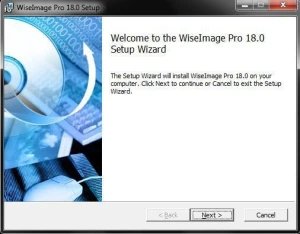
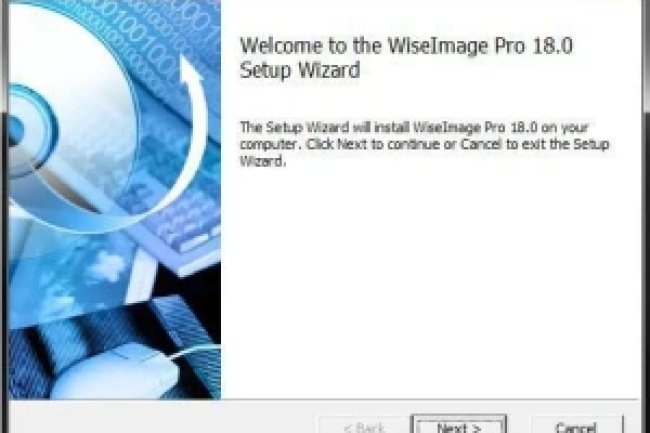
At first, you will see the WiseImage 18.0 welcome dialog, End -User License Agreement, accept the terms of EULA then the Customer Information dialog box appears. Read the end-user license agreement and after accepting click next.
Enter your name into theUser Name box, then enter your organization name in the Company Name box, and enter the serial number of your product copy in the Serial Number box. Check the information entered is correct at this stage, as you will not be able to change it after the installation has been completed. Click the Next button to continue. The Choose Destination Location box will appear.
Next, you need to specify the folder name and the location, where WiseImage will be installed. You can accept the default path or specify a location for the installation with the Change button. Click the Next button to continue.
Specify AutoCAD versions to install WiseImage and choose necessary AutoCAD profile, which will be used as a base to create a new WiseImage profile. After selecting the profile, click the Next button.
Press Install to begin the installation.
Press Finish and a new Registration wizard will come up.